
Due to the nature of the work that we will be doing, and the declared intentions of retribution from the Trump administration, we feel it is very important to do run our communications through encrypted channels. We have settled on using Signal as our chosen platform.
Following are the instructions for downloading, installing and configuring Signal, as well as the link to our group chat.
Signal allows you to chat (send text messages), and make voice or video calls, just like the normal apps on your phone, only they are end-to-end encrypted. It also allows you to share stories, articles you write in the app. Using the chat, you can attach images and documents to share as well.
More info on setting up and using Signal is available in their support section of their website.
Once you have the app installed and configured, please contact us through Signal at the address you received in the welcome email so you can be added to the HDC group chat.
A Guide to Using Signal for Government Workers – Also useful if you’re not working for the government, or you were working for the government but Musk just fired you.
Download the Signal App
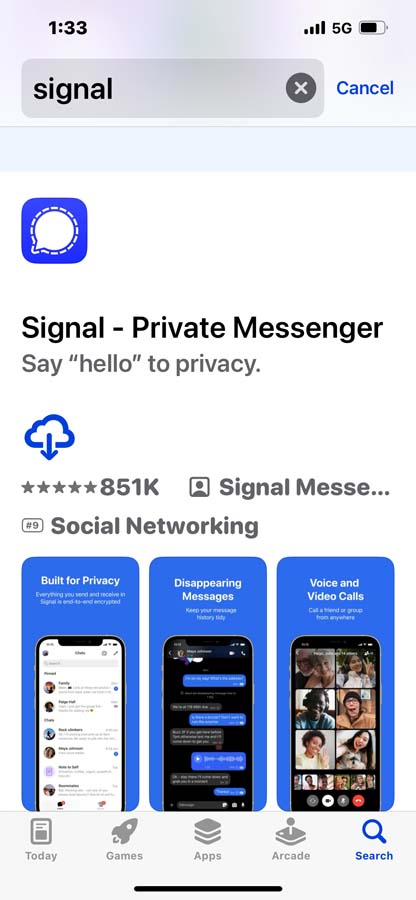
Go to signal.org. There you will find links to download the Signal app. It is available for both iPhone and Android platforms as well as desktop computers. Since the app is tied to your phone, you must install it on your phone first, then you can install the desktop app and they will sync together.
Install the Signal App
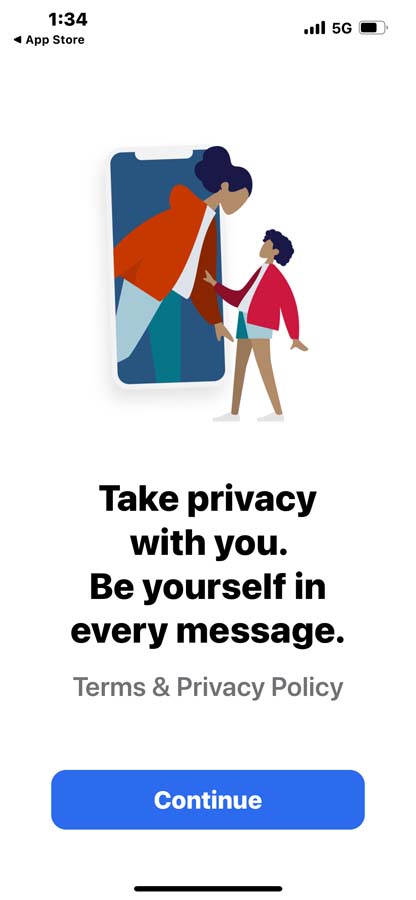
This is the first screen you will see once you download the app. It is just a splash screen. Click “Continue”.
Notifications & Contacts
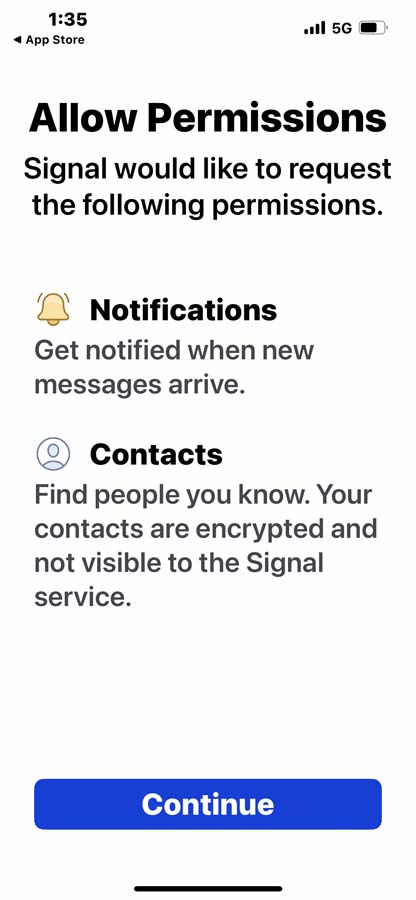
The next screen will begin the configuration of Notifications and Contacts. Click “Continue”
Allow Notifications
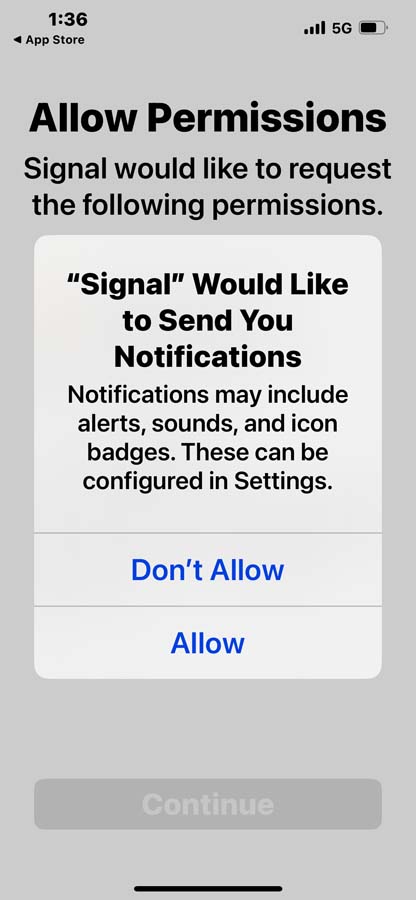
Click on Allow Notifications. You can tailor the notification settings further on the iPhone under Settings (not sure how that works on Android since I have an iPhone) I would recommend setting it to only show Name, and use Settings to not show notifications on the locked screen.
Allow Access to Contacts
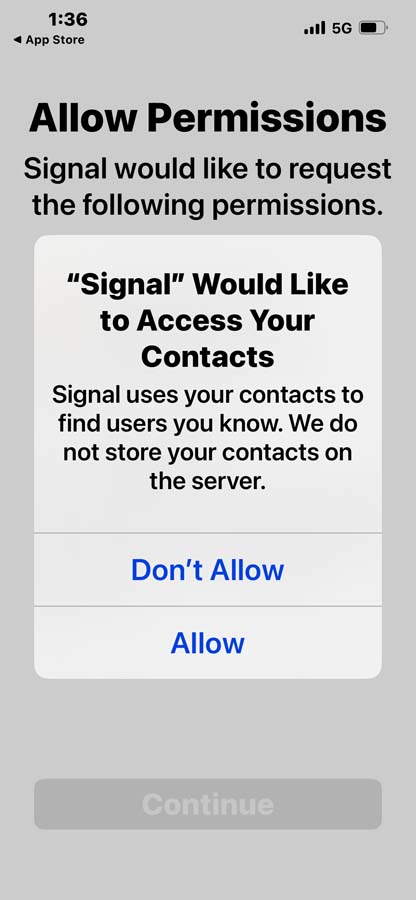
Allow the app to access your contacts. This way it will populate your Signal contact list with any contacts you have that are already using the app.
Verify Your Phone Number
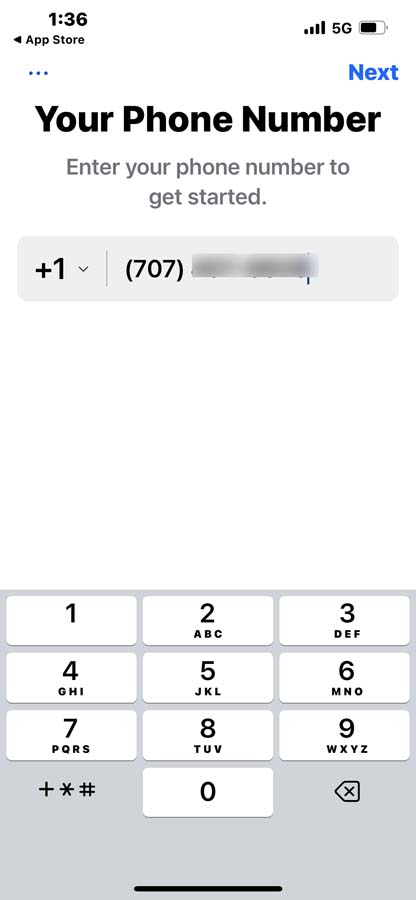 Enter your phone number and tap “Next”. The app will send you a text with a 6-digit code. Enter the code to verify your phone number. Then tap “Next” again.
Enter and Verify Your PIN
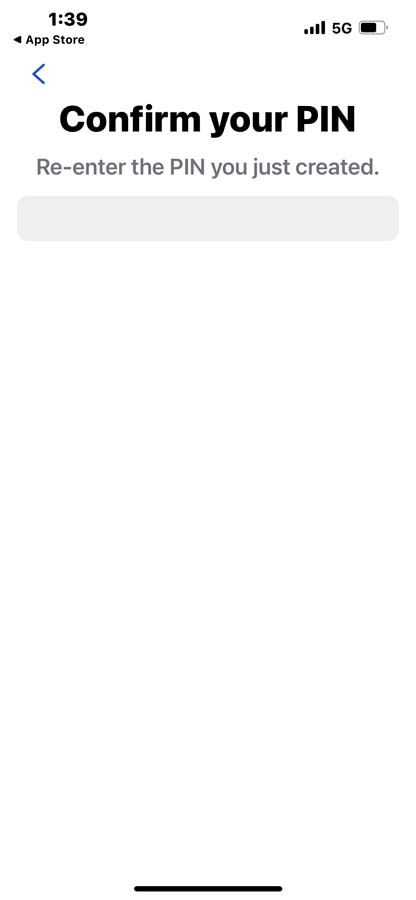
Enter a pin number. Like all pin numbers and passwords, you should not reuse a pin number that you’ve used elsewhere. Minimum of 4 characters, but longer is better. Make sure it’s something you will remember as you will need to enter it occasionally. The app will ask you to confirm the pin you just entered.
Set Up Your Profile
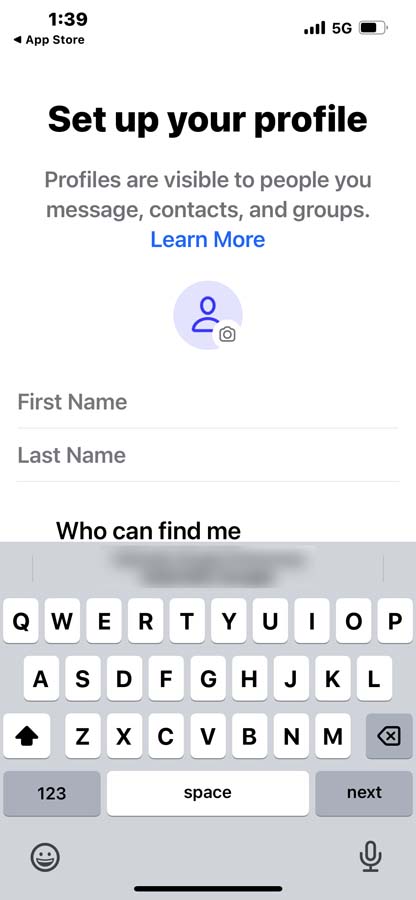
Enter your real first name and last name.
Configure Search
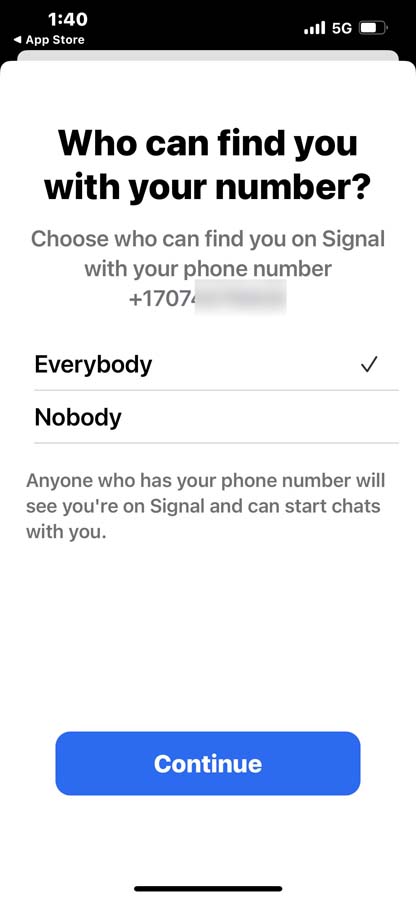 Allow Everybody to find you by your phone number.
Configure Notification Options
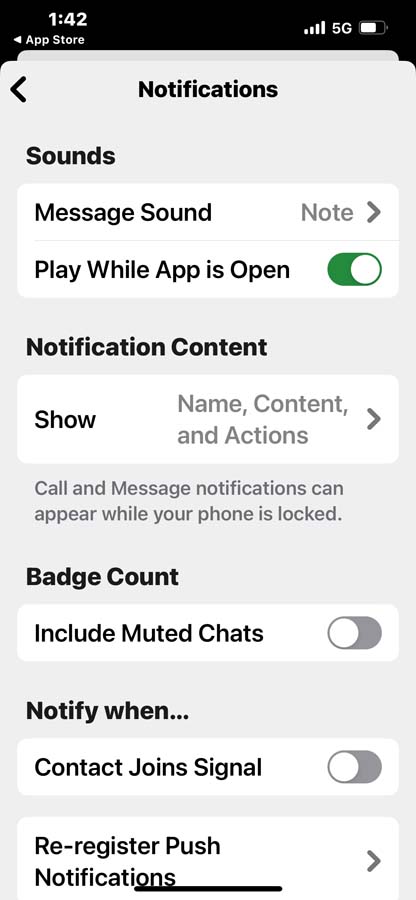 These you can pretty much configure to your personal preference.The app settings can be changed at any time by clicking the icon at the top left of the screen which is either your initials, or a photo you have configured. I set the notifications to Name only.
Privacy Configurations
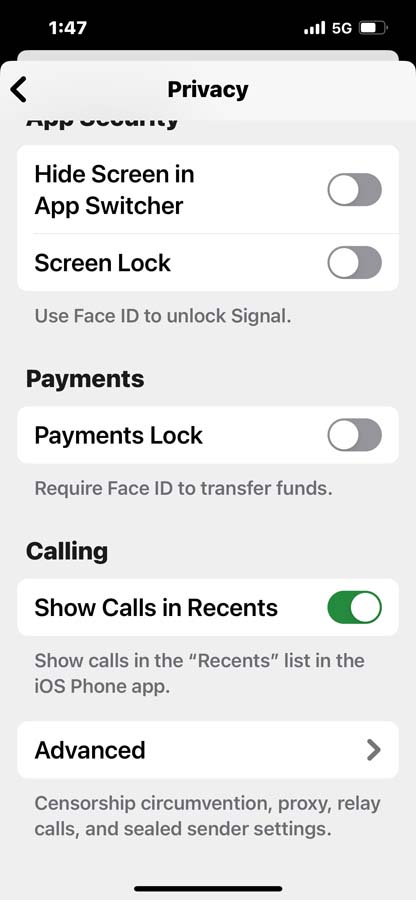
Again, set to your personal preferences. I have Disappearing Messages set to 1 day. I have Who Can See My Number set to Nobody, and Who Can Find Me by Number set to Everybody.